 Handycode
Restaurant Menu QR Code: Upload PDF, Update Without Reprinting (Free)
Free, no credit card. Make it in the HandyCode iPhone app. Get it on the App Store
A restaurant menu QR code should do two things: open your current menu on any customer’s phone, and stay correct when the menu changes. That second part is where most setups fail - a static code with yesterday’s prices is worse than no code at all.
Unlike many free menu tools, HandyCode has no documented item or scan caps and does not show an ad page before your menu opens.
This page is the hub for everything menu-QR related: a live demo you can scan right now, the print-size numbers, how update-without-reprint actually works, and an honest section on when you want a full ordering system instead of a QR code pointing at a PDF.
Quick answer
- Upload your menu PDF (or paste a link to your existing online menu) to a dynamic QR code platform.
- Generate the QR code and print it on tables, counters, or windows at the right size.
- When the menu changes, replace the file - every printed code updates instantly, no reprint.
HandyCode’s free plan covers all of it: unlimited dynamic codes, your PDF hosted by us, no credit card, no documented scan cap.
Live demo: scan this menu right now
This QR code is a real, live HandyCode code - the same cafe menu demo from the homepage. It points at a hosted menu page, and the menu file behind it has been swapped in place: the printed pattern never changed, but the menu did.
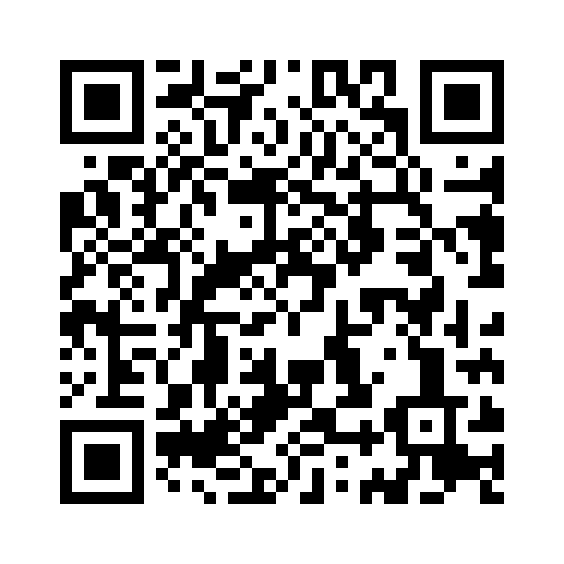
Scan it, or open the live menu.
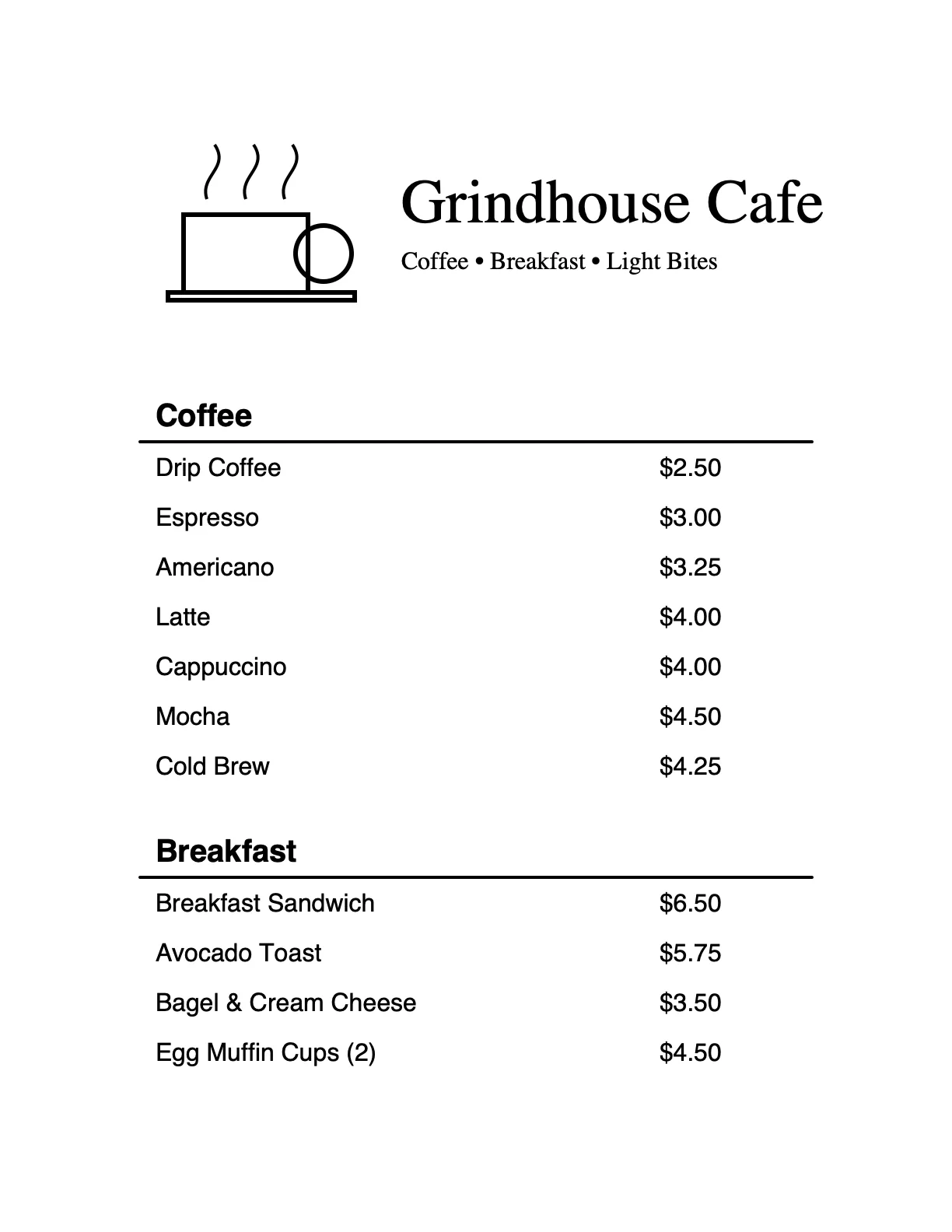
The version that was live first
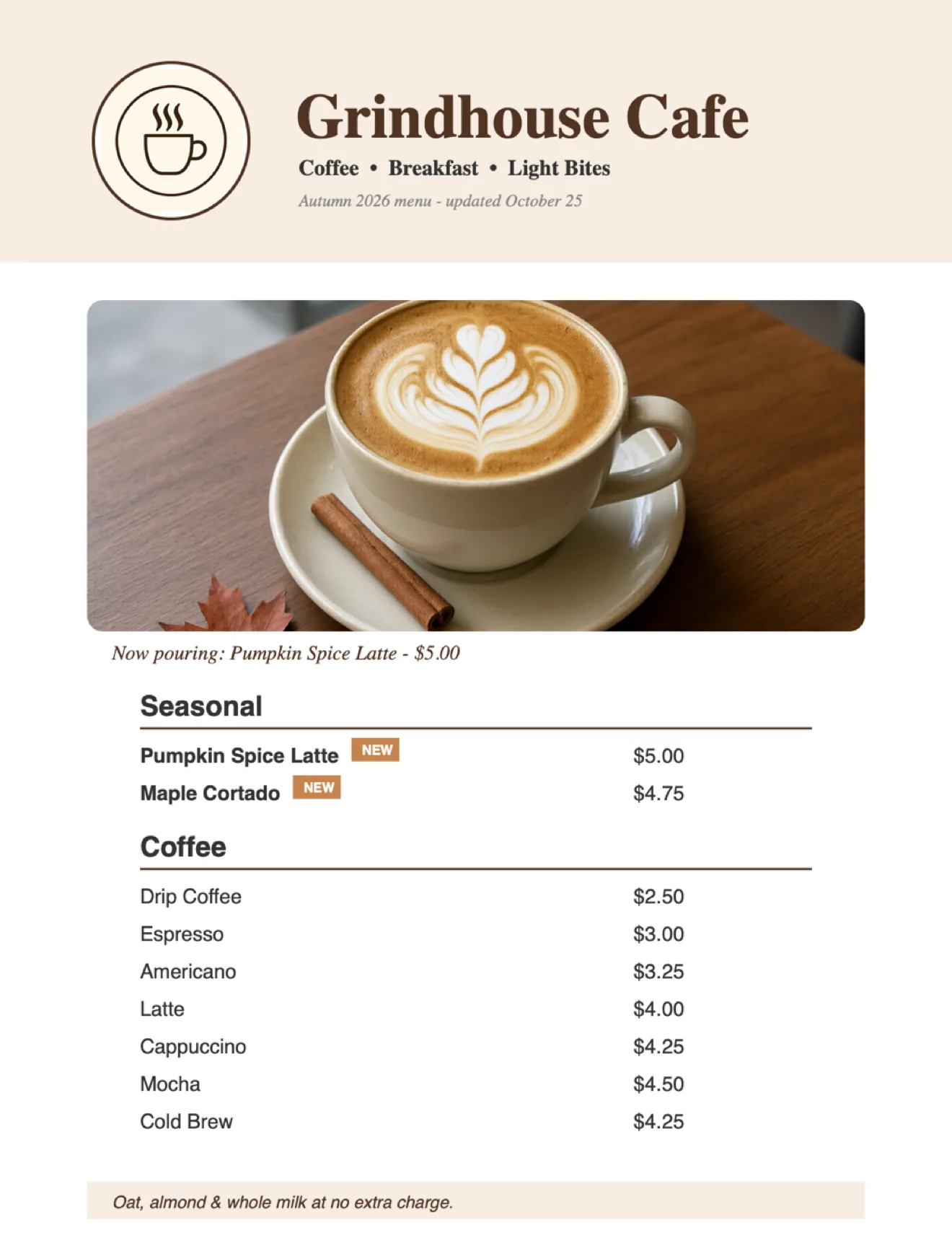
What the same code shows after one update
The demo ran through the exact loop a restaurant uses: print once, update whenever. More on the homepage live demo section.
How it works: PDF in, printed code out
- Create the code. In the HandyCode app (iPhone or iPad), choose a Menu or PDF code and upload your menu file - or paste a link if your menu already lives online. We host the file and give the code a short address.
- Style it (optional). Add your logo colors, a frame, or a “Scan for menu” label so the code reads as intentional, not like an afterthought.
- Export for print. Download the code and hand it to your printer - the sizes below tell you how big to make it.
- Update anytime. Prices changed? New spring menu? Upload the new PDF to the same code. Every printed copy now opens the new file. There is nothing to reprint and no downtime window where the old link 404s.
Customer side: no app, no sign-in. The phone camera opens a hosted page that shows your menu - it works on iPhone, Android, and tablets alike. Only managing the code needs the HandyCode app.
Print size: the numbers that matter
A code too small to scan from where the customer actually stands is the most common menu-QR failure. Rule of thumb: the code’s longest side should be roughly 1/10 of the scanning distance.
| Placement | Typical scanning distance | Minimum code size (quiet zone included) |
|---|---|---|
| Handout / flyer corner | 30-50 cm, at arm’s length | 3 x 3 cm (1.2 in) |
| Table tent, tabletop sticker | 50-100 cm | 4 x 4 cm (1.5 in) |
| Counter or POS card | 50-100 cm | 4 x 4 cm (1.5 in) |
| Counter standee | 1-1.5 m | 8-10 cm (3-4 in) |
| Window or door poster | 1.5-3 m | 15-20 cm (6-8 in) |
Then the four rules that survive the print shop:
- 300 DPI or vector. Export SVG/PDF for the print file; a 72-DPI PNG gets soft edges and soft edges fail scans.
- Dark on light. Near-black modules on white or near-white. Inverted (light-on-dark) codes scan noticeably worse.
- Quiet zone. Keep a blank margin - about the width of one module, generously a full 1-2 cm - clear of text and borders on all four sides.
- Test at distance. After proofs arrive, scan from the farthest position a customer will use, with a cheap Android phone, not just your flagship.
If your codes ever underperform, Why Your QR Code Isn’t Getting Scanned (And How to Fix It) walks through the failure modes.
PDF menu vs. web menu: which should the code point at?
- A PDF is enough for most places. It matches your printed design exactly, takes minutes to set up, and renders fine on any phone from the hosted page. This is the path the live demo above uses - the general-purpose version of the workflow lives on our free PDF QR code page.
- A web menu earns its keep when you change individual items constantly (daily specials boards), want per-item ordering, or need the menu indexed by Google as a live page.
HandyCode covers the middle ground well: today you upload the PDF; if you later move to a web menu, you keep the same printed QR code and just repoint the destination - which is exactly what static codes can never do. Background reading: Static vs Dynamic QR Codes: What’s the Difference?.
When you want a full POS/ordering tool instead
Be honest about the boundary: a QR menu code replaces a printed menu, not an operating system. You have outgrown “QR to PDF” when you need any of these:
- Order-and-pay at the table - courses fired to the kitchen, split checks, tips at the customer’s phone. That is POS territory (Toast, Square for Restaurants, and similar), and no link-in-a-QR tool does it properly.
- Table and floor management - seat maps, course timing, server handoffs.
- Per-item analytics - which dishes get tapped versus ordered. A QR platform can only see that the menu page was opened.
- Multi-branch menus at kitchen-system depth - hundreds of SKUs synced to inventory, allergen data flowing from your supplier system.
If that is where you are, use a restaurant ordering platform, and keep a QR code as its entry point - an editable one, so switching vendors later doesn’t strand your printed table tents. If you just need the menu current on every table without reprinting a card every time prices move, a dynamic QR code pointing at your hosted PDF is the cheaper, simpler tool - that gap is exactly what HandyCode is built for. Full comparison of the menu-tool field: Best QR Code Menu Tools for Restaurants.
What it costs
- HandyCode Free: unlimited dynamic QR codes of all 46 free types (menus included), your PDF hosted by us, no credit card, and no documented scan cap - and codes keep redirecting even if you cancel Pro.
- Pro ($9.99/mo or $89.99/yr, App Store billing): custom logo upload, branding removal, and detailed analytics after a 14-day trial - the last one worth having if you want to see which table tents actually get scanned (How to Track QR Code Scans).
One disclosure up front: HandyCode is iOS only. Codes are created and managed in the iPhone/iPad app - there is no Android app and no web dashboard. Customers scanning your menu need nothing; to edit your menu from a desktop, the free web generator makes instant static codes for links and WiFi, but dynamic codes and file uploads live in the app.
Setup guides on this blog
This hub is the starting point; the deep dives are here:
- QR Code Menus for Restaurants: Complete Setup Guide - end-to-end setup, placement, and mistakes.
- How to Put Your Restaurant Menu Online with a QR Code - hosting options compared.
- How to Update a QR Code Menu Without Reprinting - the update loop in detail.
- Best QR Code Menu Tools for Restaurants - what to look for when comparing tools.
Frequently asked questions
How do I create a QR code for my restaurant menu?
Upload your menu PDF to a platform that hosts the file behind the code - in HandyCode, create a Menu or PDF code in the app and upload - or paste a link to a menu that is already online. Print the code at 1/10 of the scanning distance. Full walkthrough: QR Code Menus for Restaurants.
Can I turn a PDF menu into a QR code?
Yes - that is the most common setup. The code opens a hosted page that renders your PDF on any phone. What you should not do: encode a direct PDF URL into a static code. When the file moves or changes, every printed copy breaks. Use a dynamic code so the file behind it is swappable.
Can I update a QR code menu without reprinting?
With a dynamic code, yes: replace the PDF or repoint the link, and all printed copies show the new menu within moments. With a static code, no - the destination is burned into the pattern. That difference is the whole reason updating without reprinting is the first question a restaurant should ask any QR vendor.
How big should a menu QR code be?
About 1/10 of the scanning distance: 4 x 4 cm (1.5 in) minimum for table tents and counter cards, 3 x 3 cm for flyers held in hand, and 15-20 cm for posters read from a few meters. Print dark-on-light at 300 DPI or vector, keep the quiet-zone margin, and test the proof at the real scanning distance before a print run.
Is a QR code menu free?
It can be. HandyCode’s free plan includes unlimited dynamic menu codes with the PDF hosted by us, no credit card, and no documented scan cap; the codes keep redirecting even after a Pro cancellation. Creating dynamic codes needs a free email-activated account, and management is iPhone/iPad-only - see the pricing page for what Pro adds.
QR Code is a registered trademark of DENSO WAVE INCORPORATED. Toast, Square, and other named products are trademarks of their respective owners and are mentioned informationally.