 Handycode
Free PDF QR Code on iPhone: Upload the File, Swap It Anytime
Free, no credit card. Make it in the HandyCode iPhone app. Get it on the App Store
A PDF behind a QR code fails in two ways: the link breaks (the file moved, permissions changed, the free plan lapsed), or the file goes stale (the printed code still opens last season’s price list). This page is the hub for doing it so neither happens: you upload the PDF once, we host it, and you can swap the file later without touching a single printed code.
Last updated: November 2026
Quick answer
- Upload your PDF in the HandyCode app (iPhone or iPad) - we host the file, no Google Drive link needed.
- Generate the dynamic QR code and print it on flyers, posters, packaging, or tables.
- When the document changes, upload a replacement to the same code - every printed copy opens the new file, nothing to reprint.
The free plan covers it: unlimited dynamic codes of 46 types, files hosted by us, no credit card, no documented scan cap (fair-use terms apply).
Live demo: a file behind a code, swapped in place
This is a real, live HandyCode code - the same demo from the homepage. It points at a hosted document page, and the file behind it was replaced after printing: the pattern never changed, the content did.
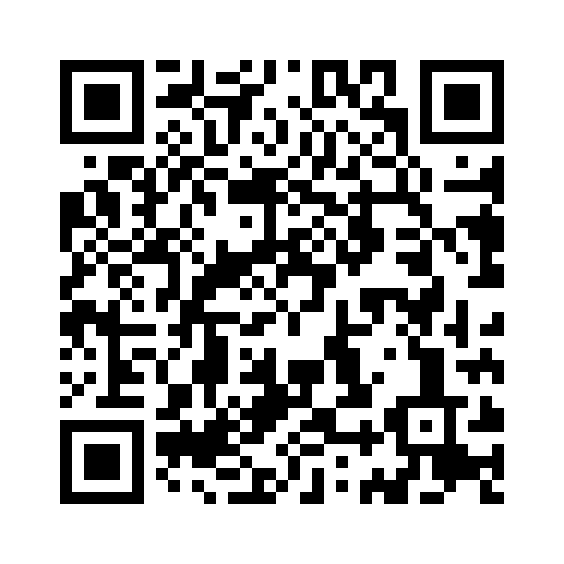
Scan it, or open the live demo.
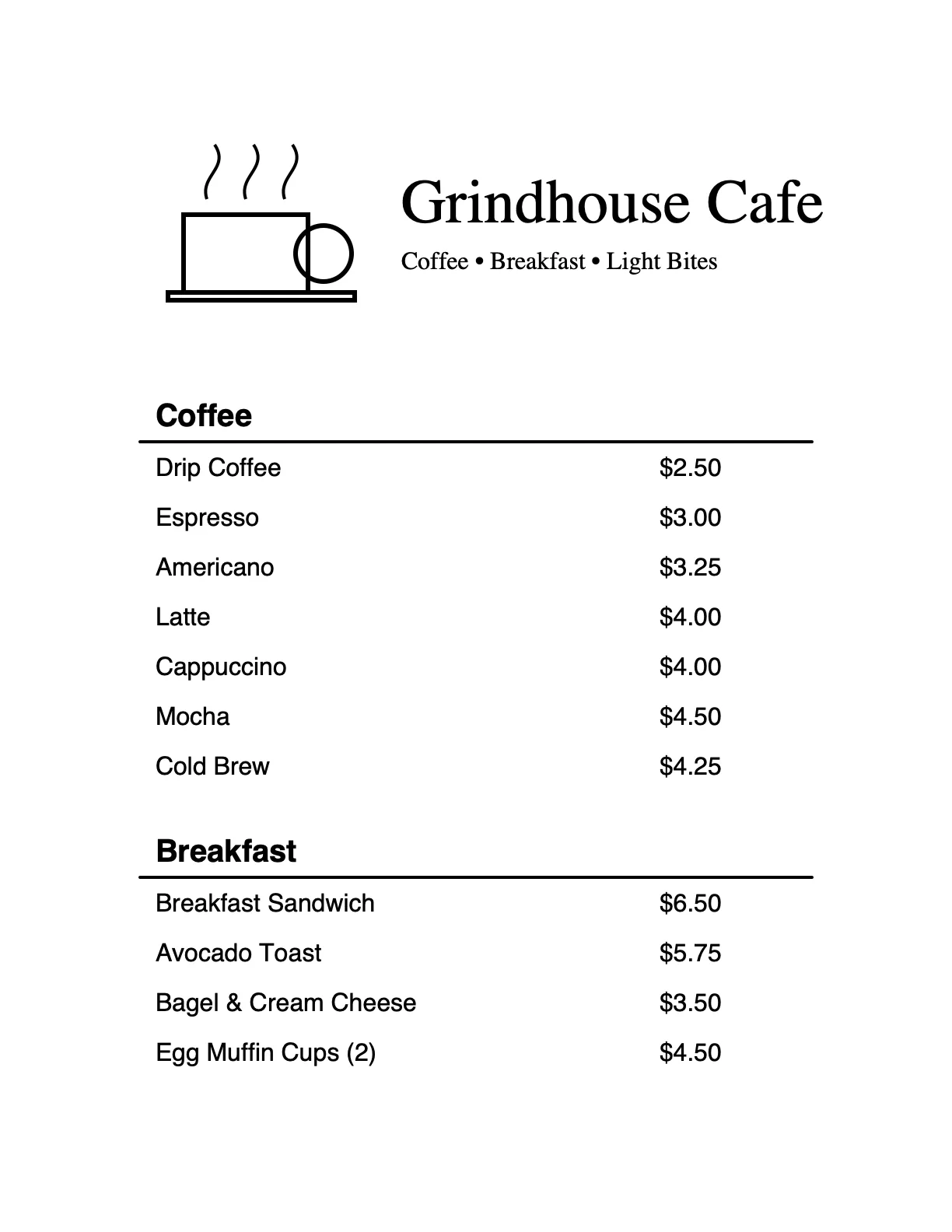
The version that was live first
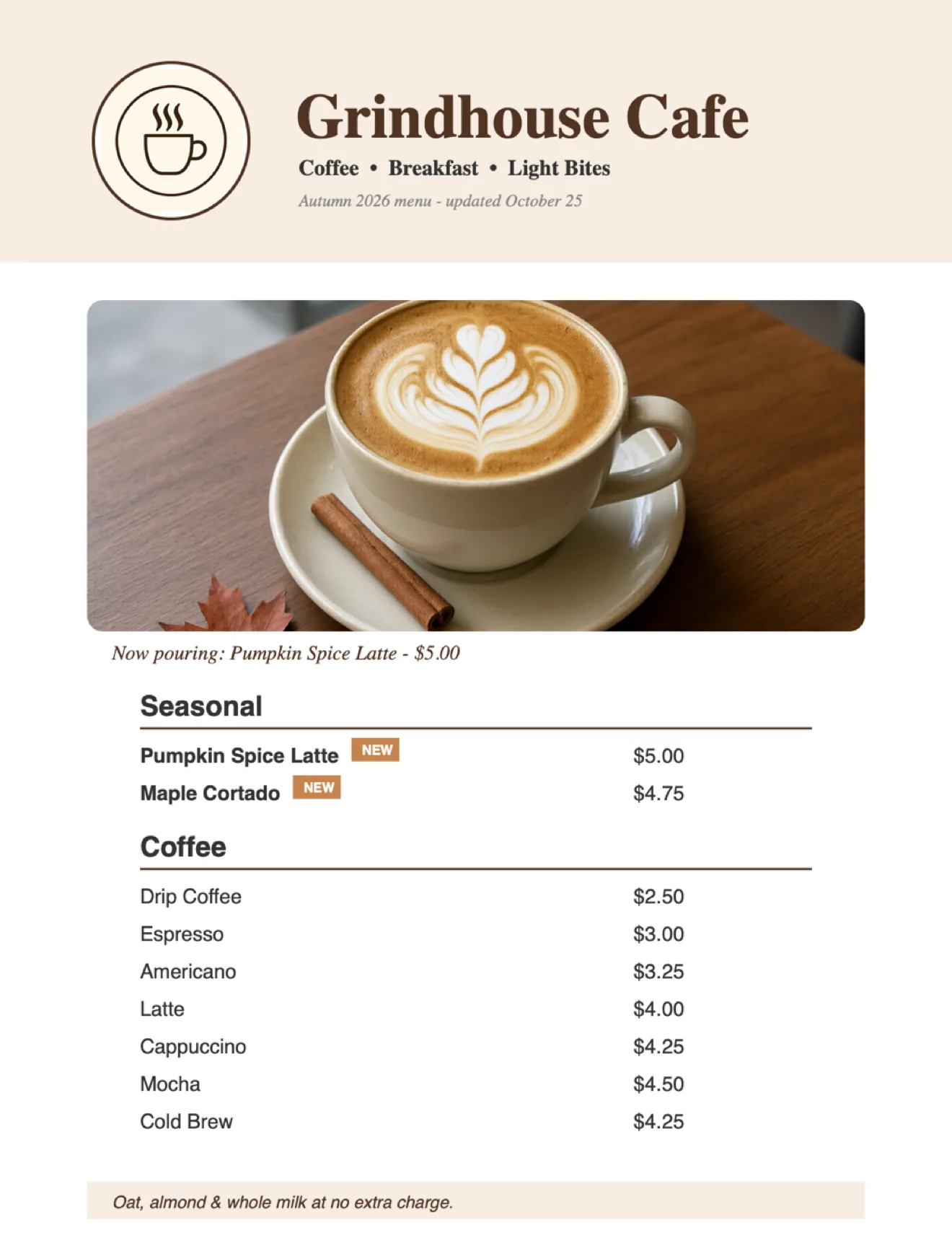
What the same code shows after one swap
How it works: four steps, then the swap
- Create the code. In the HandyCode app, choose a PDF code (or a Menu code for menus) and upload the file - or paste a link if the document already lives online. We host the file and give the code a short address.
- Style it (optional). Logo colors, a frame, a “Scan for the brochure” label so the code reads as intentional.
- Export and print. Download the code for your printer. Size rule of thumb: the code’s longest side about 1/10 of the scanning distance - the per-placement numbers are in the print-size guide.
- Test before the print run. Scan the proof from the farthest real distance, on a cheap Android phone as well as yours.
The replace flow, which is the whole point: open the code in the app, upload the new PDF, done. The short address is unchanged, so every flyer, poster, table card, and packaging insert in the world now serves the new file - no downtime window where the old link 404s, nothing to reprint.
Customer side: no app, no sign-in. Any phone camera opens a hosted page that renders the PDF - iPhone, Android, tablet alike. Only managing the code needs the HandyCode app.
Why not just a Google Drive link?
The Drive-link setup - upload, copy a share link, encode it - is free and fragile:
- Permissions are a landmine. Switch the link from “anyone with the link” to anything else, or let a workspace membership lapse, and every printed code starts serving a request-access page.
- Preview interstitials. Drive often opens its own viewer with extra taps, or a login prompt on some devices, instead of the file.
- Static codes freeze the URL. Paste the link into a free static generator and the address is burned into the pattern: rename the file, re-share it, or move folders and the printed codes are gone.
- No control over the experience. The customer lands in someone else’s interface, and you never know if the document opened.
The deeper comparison - Drive vs Dropbox vs your own site vs hosted-behind-the-code: Hosting Files Behind QR Codes: The Easy Way. And the step-by-step if you still want the DIY route: How to Create a QR Code for a PDF.
Restaurant and café menus
If the PDF is a menu, the dedicated hub is Restaurant Menu QR Code: menu-specific print sizes (table tents, window posters), the PDF-vs-web-menu decision, and an honest section on when a full ordering system is the right tool instead. Everything on that page runs on the same upload-and-swap mechanism described here.
Other uses for a PDF behind a code
- Brochures and one-pagers - trade-show handouts that get revised mid-show.
- Price lists and spec sheets - contractors and trades who quote from a current PDF.
- Real estate packets - listing sheets, disclosures, and HOA docs updated per week on the yard sign.
- Event programs and schedules - running-order changes after the posters are already up.
- Menus, wine lists, and spa menus - per-service updates with zero reprints.
- Manuals and assembly instructions - printed packaging that gets corrected without a new print plate.
- Resumes and portfolios - a card whose document is always the latest version.
Before you print: checklist
- Dynamic, not static. If the file can ever change, the code must be swappable - why, in one read.
- Who hosts the file, and what does it cost? On HandyCode, PDF and image hosting is on the free plan; on many vendors it sits behind a paywall.
- What happens if you stop paying? Published HandyCode codes keep redirecting even after a Pro cancellation (documented policy, test-pinned). Any vendor: read their cancellation terms before the print run.
- Size for the real scanning distance and print dark-on-light at 300 DPI or vector.
- Scan the proof at the farthest distance a real customer will use, before approving the run.
What it costs
- HandyCode Free: unlimited dynamic codes of all 46 free types (PDF codes included), your file hosted by us, no credit card - a free email account is all dynamic codes need - and no documented scan cap (fair-use terms apply). Free hosted pages show a small “Powered by HandyCode” label.
- Pro ($9.99/mo or $89.99/yr, App Store billing): custom logo on your codes, branding removal, form-type codes, and detailed analytics after a 14-day trial - useful when you want to know which flyer placement actually drove scans (How to Track QR Code Scans). Full details: pricing.
One disclosure up front: HandyCode is iPhone & iPad only (iOS 18+). Codes are created and managed in the app - there is no Android app and no web dashboard for editable codes. Customers scanning your PDF need nothing; to edit from a desktop, the free web generator makes instant static codes for links and WiFi, but dynamic codes and file uploads live in the app.
Frequently asked questions
How do I create a QR code for a PDF?
Upload the PDF to a platform that hosts the file behind the code - in HandyCode, create a PDF code in the app and upload - and print the generated code. Anyone who scans it opens your document on any phone. Avoid the static route with a raw PDF URL: when the file moves, the printed copies break. Longer walkthrough: How to Create a QR Code for a PDF.
Can I change the PDF behind a QR code after printing?
With a dynamic code, yes - upload a replacement file to the same code and every printed copy serves it within moments. That is the difference between a document you can update and a URL you burned into paper.
Can I use a Google Drive link for a PDF QR code?
You can, but it is the fragile option: permission changes turn printed codes into “request access” pages, Drive’s viewer adds taps, and a static code freezes the link permanently. Hosting the file behind the code removes the middleman entirely.
Is a PDF QR code free?
With HandyCode, yes: unlimited dynamic PDF codes, the file hosted by us, no credit card, no documented scan cap (fair-use terms apply). Codes keep redirecting even if you later cancel Pro; free hosted pages carry a small “Powered by HandyCode” label. Creating dynamic codes needs a free email-activated account, and management is iPhone/iPad-only.
Do customers need an app to scan it?
No - any phone camera and browser opens the hosted page with your PDF. Only managing codes needs the HandyCode app (iPhone & iPad, iOS 18+); there is no Android app or web dashboard for editable codes.
The bottom line
A PDF behind a QR code should be a live document, not a printed URL with an expiry date hiding in someone’s permissions settings. Upload once, print, and keep the right to change your mind - the swap costs nothing and reprints cost everything.
iPhone & iPad only (iOS 18+). On Android or a computer? Scan this code with an iPhone.

Scan to get the app
Point your iPhone camera at this code to open HandyCode on the App Store.
Menu instead of a generic PDF? See the restaurant menu hub
QR Code is a registered trademark of DENSO WAVE INCORPORATED. Google Drive is a trademark of Google LLC; mentioned informationally.